RSS

Schlagwort-Archive: conky

Lubuntu 12.04: conky startet nicht mehr (Speicherzugriffsfehler)

Lubuntu 12.04: conky startet nicht mehr (Speicherzugriffsfehler)

Seit meinem Upgrade auf Lubuntu 12.04 lässt sich der Systemmonitor conky nicht mehr starten. Beim manuellen Start kommt der Fehler „Speicherzugriffsfehler“:

juergen@vostro:~$ conky
Conky: desktop window (100017e) is subwindow of root window (af)
Conky: window type - desktop
Conky: drawing to created window (0x3c00001)
Conky: drawing to double buffer
Speicherzugriffsfehler (Speicherabzug geschrieben)

Der Fehler ist bekannt, siehe: „conky seg faults if launched shortly after reboot„, allerdings scheint es noch keine zuverlässige Lösung zu geben, die Ubuntu dazu veranlasst eine gefixte Version über eine Systemaktualisierung anzubieten. Ich habe mir die Kommentare im o.g. Link angeschaut und ein Upgrade auf Version 1.9.0.2 durchgeführt – seitdem scheint das Problem behoben zu sein. Aktuell war bei mir folgende Version installiert:

juergen@vostro:/etc/apt$ conky --version
Conky 1.8.1 compiled ...for Linux 2.6.24-30-server  (x86_64)

Um ein Upgrade auf 1.9.0.2 durchzuführen, muss man die Dateien conky-std_1.9.0-2_amd64.deb und conky_1.9.0-2_all.deb herunterladen und in dieser Reihenfolge installieren. Kann sein, dass vorher die alten Versionen deinstalliert werden müssen, bei mir war das nicht notwendig. Nach der Installation der beiden Pakete sollte folgende Version (oder neuer) erscheinen:

juergen@vostro:~$ conky --version
Conky 1.9.0 compiled ... for Linux 2.6.24-29-server (x86_64)

Nach einem Reboot scheint endlich wieder alles richtig zu funktionieren 🙂

Links:
Bug Info
Upgrade conkyI like conky, the free and highly configurable system monitor on Lubuntu. But since I’ve updated to Lubuntu 12.04 I had a lot of trouble with this app. In fact it did not start, because of a segmentation fault. This was really frustrating, but I did not only update Lubuntu, in fact I updated my Linux kernel several times as well. So, no wonder, that some of my applications did not work anymore (conky, VMWare etc.).

Especially for conky, I guess I found a solution. When you read the bugs page of Ubuntu ‚conky seg faults if launched shortly after reboot‚ you will see, that this is not a hardware issue, but a general issue. I read all the comments and decided to upgrade conky to a newer version and this was the solution, at least in my case (hardware etc.). To be more precise, I have a  laptop „Vostro“ from Dell and I use a 64 bit Lubuntu 12.04.

Beforehand I worked with the following conky version:

juergen@vostro:/etc/apt$ conky --version
Conky 1.8.1 compiled ...for Linux 2.6.24-30-server  (x86_64)

Then I did it again :-), I bravely upgraded it without knowledge what will happen. If you like to share this trip with me, you haveto  download and install the following files in the same order:  conky-std_1.9.0-2_amd64.deb and conky_1.9.0-2_all.deb. Afterwards the following message should appear:

juergen@vostro:~$ conky --version
Conky 1.9.0 compiled ... for Linux 2.6.24-29-server (x86_64)

Do a reboot an everything should work fine 🙂

Links:

Bug Info

Upgrade conky

 
Hinterlasse einen Kommentar

Verfasst von - Juni 23, 2012 in Linux


Schlagwörter: ,

Lubuntu LXDE: Upgrade von 11.10 auf 12.04 – I did it!

Lubuntu LXDE: Upgrade von 11.10 auf 12.04 – I did it!

Motivation

Eigentlich wollte ich ja noch ein bisschen warten, bevor ich das Upgrade von Lubuntu 11.10 auf 12.04 durchführe. Aber nachdem ich mein Netbook bereits ohne Probleme upgraden konnte, dachte ich mir, mein „richtiger“ Computer soll auch in den Genuss der neuen Features kommen, die das Upgrade bietet (siehe auch: Lubuntu LXDE: Lubuntu 12.04 ist da!).

Upgrade

Ich werden im folgenden alle Schritte dokumentieren…

Erst einmal ein Check, welches meine aktuelle Lubuntu Version ist:

Ja,ja, ich kann es nicht leugnen, erste Ansätze von Alzheimer sind auch bei mir erkennbar…

Die Uhrzeit ist aktuell: 22:18 Uhr

Sodele, jetzt geht es los!

Startet die „Aktualisierungsverwaltung“ im Hauptmenu unter Systemwerkzeuge, dann sollte die Meldung „Neue Ubuntu-Version 12.04 LTS ist verfügbar“ erscheinen:

Um die Aktualisierung zu starten, einfach den „Aktualisieren“ Knopf, gleich rechts neben der Meldung drücken.

Das folgende Fenster gibt einige nützliche Hinweise und Links und, da ich mir sicher bin, daß ich das System upgraden will, drücke ich den Knopf „System aktualisieren“.

Ich gebe das root Passwort ein und schon gehts los…

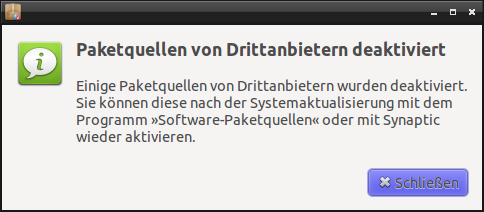
Es erscheint ein weiteres Fenster, dass mich darauf hinweist, dass die Paketquellen von Drittanbietern deaktiviert werden:

Das ist klar, schließlich sollen nur die Orginalquellen für das Upgrade verwendet werden und nicht evtl. Pakete, die von Drittanbietern zur Verfügung gestellt werden und neuer sind, also „Schließen“ drücken.

Und jetzt kommt’s:

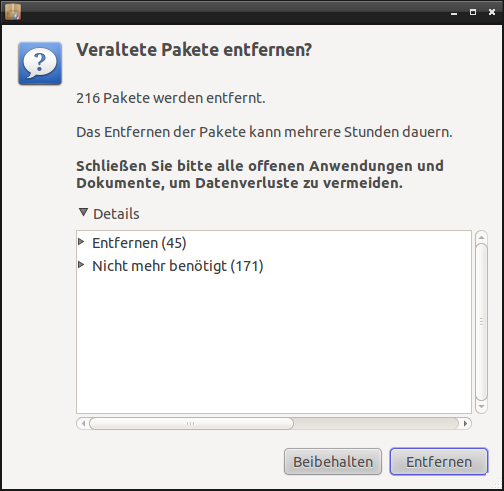
Spätestens jetzt gibt es kein Zurück mehr! Ich habe mir deshalb die Details-Liste angeschaut. Insbesondere die Unterabschnitte „Entfernen“, „Nicht mehr benötigt“ und „Nicht mehr von Canonical unterstützt“ sollte man sich genauer anschauen. Bis auf „MySQL“ kann ich mit den Änderungen leben. Was mit den „MySQL“-Paketen passiert, werden wir sehen.

Ich starte also endgültig das Upgrade mit „Systemaktualisierung beginnen“.

Zunächst werden die Pakete (1985 an der Zahl) heruntergeladen, wird vom „Update-Manager“ auf ca. 8 Minuten geschätzt, tatsächlich waren es ca. 15 Minuten.

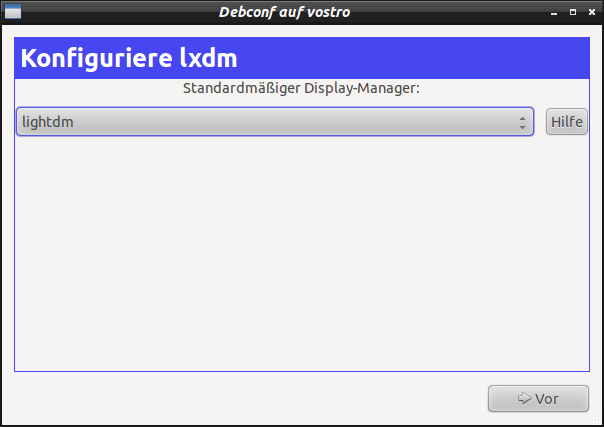
Danach kommt die Frage, welchen Displaymanager man zukünftig benutzen will (siehe auch Lubuntu 12.04: Begriffs-Wirr-Warr “Lightdm”, “Openbox”, “LXDE” :-()), ich entscheide mich für den aktuellen und total hippen „Lightdm“.

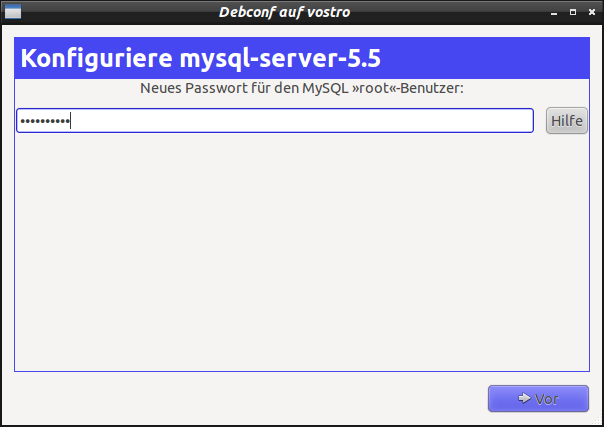
Gleich danach werden meine Bedenken bzgl. „MySQL“ zerstreut, es findet ein Upgrade von 5.1.62 auf 5.5 statt. Da freu ich mich jetzt aber und gebe mein MySQL-root-Kennwort ein und bestätige es dann auch noch einmal:

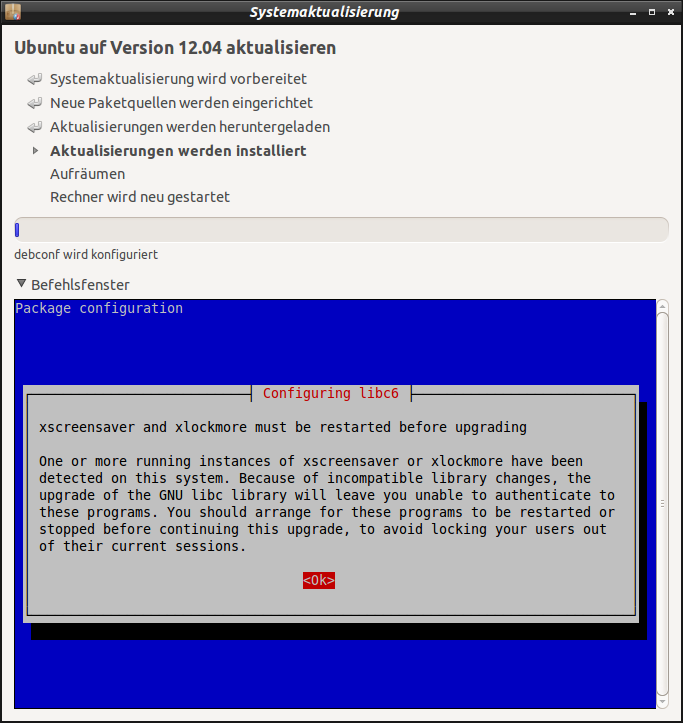
Und weiter geht’s…die Aktualisierungen werden installiert. Voller Spannung sitze ich vor dem Fortschrittsbalken, aber es tut sich nichts. Ein Klick auf das „Befehlsfenster“ klärt mich auf:

Also für diese Meldung hätte man meiner Meinung nach den Installationsprozess nicht anhalten müssen, aber sei’s drum. Ich bestätige mit der Enter Taste…und wenn schon mal das Befehlsfenster offen ist, fragt mich die kleine Nervensäge, ob ich bestimmte Services nach dem glibc Upgrade wieder starten will. Ich sage auch hier „mach ma“…Der Update-Manager mutiert zum Entertainer: Es kommt noch einmal die Meldung (siehe Abbildung vorher) und ich sage again, das ist für mich OK…Und weil es so einen Spaß macht bin ich auch erneut dafür, die Services nach dem glibc Upgrade wieder zu starten. Bei der Gelegenheit überlege ich, ob ich diese Gottschalk-Mutation, vielleicht einmal bitten sollte einen Blick nach links zu werfen. Dort ist ein Fenster, wir wohnen im vierten Stock, mehr brauch ich wohl nicht zu sagen…Mal sehen was sich das Tool noch alles ausdenkt, evtl. komme ich auf die Fenster-Nummer noch einmal zurück. Und siehe da – jetzt macht er es tatsächlich – er fährt fort mit der Installation 🙂 Aber nicht ohne Rachegelüste, die geschätzte Dauer für die Installation soll 4 Stunden !!! betragen. Nach ca. 5 Minuten beträgt die Dauer „nur“ noch 3,5 Stunden. Das macht mir einerseits Hoffnung, anderseits denke ich darüber nach und hege auch Zweifel, ob mein Computer mit Mathematik und dem Raum-Zeit-Kontinuum vertraut ist. Nach weiteren 5 Minuten ist die Installationsdauer auf 3 Stunden gesunken. Ich bin mir zunehmend sicherer, daß Mathematik nicht die Stärke meines Computers ist oder ich bewege mich mit Lichtgeschwindigkeit von A nach B. Kann natürlich auch sein, daß das zu seinem Racheplan gehört.

Da ich nichts anderes zu tun habe, schaue ich mir die Ausgabe im Befehlsfenster weiter an. Was treibt denn Gottschalk-Junior da? „Upgrade girl1“. Also ich hab doch keinen Schweinkram auf meinem Rechner, was für ein Girl will der denn da upgraden? Ich denke, der wird langsam ein bisschen überheblich. Erst spielt er sich als Zeitmaschine auf und nun als „Beamer“ ala Raumschiff-Enterprise oder wat? Ich sag nur „Scotty beam en!“. Er scheint zu merken. dass ich ihm auf die Schliche gekommen bin, ab jetzt erscheinen nur noch nachvollziehbare Meldungen, Dinge die ich tatsächlich installiert habe, oder die irgendwie mitinstalliert worden sind. Zur Sicherheit drehe ich das Display, Richtung Fenster 😉

…mir ist langweilig…ich drehe das Display wieder zurück zu mir und hoffe mein Kumpel hält neue Überraschungen für mich bereit…

Nö, das mit der Zeitrechnung vom Upgrade ist soweit ok, keine Überraschungen. Der Fortschrittsbalken bewegt sich kosntant, aber sehr zäh, vorwärts. Da fällt mir ein: das mit der Raumzeit hat mich schon immer mal interessiert, mal auf Wikipedia nachschauen was es damit auf sich hat (wen es interessiert: http://de.wikipedia.org/wiki/Raumzeit). Nach wenigen Zeilen komme ich zu dem Entschluß, dass man ja auch nicht alles wissen muss…was macht eigentlich der Fortschrittsbalken?!…

Das scheint wohl tatsächlich noch eine Stunde zu dauern…dann lass ich den mal machen und vertreib mir die Zeit irgendwie anders…immerhin müssen 1985 Pakete installiert werden…

Nach weiteren 5 Minuten überlege ich mir einen Schlachtplan, ich werde mit meinem „Computer“ reden und verhandeln. 1 Stunde ist absolut inakzeptabel, ein Vorschlag zur Güte könnte bei 15 Minuten liegen. Ich gehe zu meinem früher einmal geschwätzigen, jetzt nicht mehr ganz so geschwätzigen Computer und bitte ihn um eine Audienz…nach kurzer Zeit steht fest, er spricht nicht mehr mit mir…

Ich denke mir, zieh dein Ding durch, aber du wirst mich erst wieder in exakt 1 Stunde sehen. Das Licht mache ich auch noch aus…Ich schleiche mich ins Arbeitszimmer und was sehe ich? „Upgrade girl 1.0 auf girl1.2 erfolgreich durchgeführt“. Grmpf. Mein Computer ist pervers, brauche dringend einen Neuen. Der baut sich da seine Spielwelt auf, installiert was er will, kein Wunder dass das so lange dauert…

Stelle mir die Frage, was habe ich falsch gemacht?

Ich habe mich mittlerweile von der Raumzeit entkoppelt – keine Ahnung wie lange die Installation gedauert hat, auf jeden Fall etwas weniger als die verbleibende Stunde, auf jeden Fall geht es wie folgt weiter:

Hier gehe ich wieder auf Nummer sicher und schaue mir die Kategorien „Entfernen“ und „Nicht mehr benötigt“ genau an. Da ich mittlerweile den Überblick verloren habe, gehe ich in die Vollen und sage – „Beibehalten“. Schließlich erscheint die Meldung:

Die ich prompt mit „Jetzt neu starten“ bestätige…

…bin etwas erheitert:

– lightdm grüßt mich mit einem ansprechenden Design…

…und bin mißgelaunt:

– conky geht nicht mehr

– wordpress zeigt keine Bilder mehr im Edit-Modus

– whatever

Das muß ich jetzt erst einmal verdauen…entschließe mich zu einem weiteren Neustart…

Also, ein paar Sachen gehen (Hotdot, etc.), ein paar immer noch nicht (wordpress, etc.).

Hardware

Auf meinem Dell Vostro V13 scheint hardwaremäßig alles zu funktionieren (Display, Touchpad/Maus, Sound und Video).

Anwendungen

Ich werde jetzt alle Anwendungen „durchspielen“ und schauen, ob sie laufen, bzw. wie man sie hoffentlich wieder zum Laufen bringt.

VMWare Player

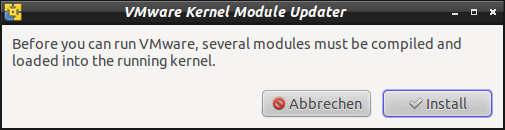
Da Lubuntu nun mit einem neuen Linux-Kernel läuft, müssen einige Module des VMWare Players neu kompiliert werden.

„Install“ drücken, Root-Passwort eingeben und warten…

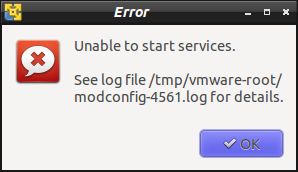
Mal nachschauen, was in der Logdatei steht. Nicht viel, ich werde erst einmal rebooten, hilft ja oft. Diesmal leider nicht. Finde Tipp auf Google http://communities.vmware.com/message/2017935: Datei „vmware802fixlinux320.tar.gz“ herunterladen, entpacken und als root ausführen. Tue was mir gesagt wird. Dauert einen Augenblick, aber danach kann ich den „vmplayer“ ganz normal starten 🙂

Shutter

Shutter läuft, allerdings sind die Einstellungen verändert worden. Ich passe sie über Bearbeiten > Einstellungen an. Geht 🙂

Hotot

Geht, ohne Problems 🙂

Thunderbird

dto.

DavMail Gateway

dto.

ZIM

dto.

Chromium

dto.

Exaile

dto.

Conky

Conky hat mir einige Probleme bereitet, ich hatte das Paket beim Upgrade bewußt nicht gelöscht, trotzdem wollte Conky nicht starten. Nach – ich weiß nicht mehr wie vielen – Reboots, läuft es plötzlich.

Fazit

Mein ursprünglich vernichtendes Urteil hat sich inzwischen relativiert, ich bin jetzt doch ganz froh das Upgrade gemacht zu haben.

Mein aktueller Desktop:


motivation

Actually, I’ve decided to wait a bit before I will upgrade Lubuntu from 11.10 to 12.04.But after I could successfully upgrade my netbook without any problems, I thought to myself, my „real“ computer (Dell Vostro V13) would also like to enjoy the new features offered by the upgrade (see also:  Lubuntu LXDE: Lubuntu 12.04 ist da!). Patience is not really a strength of mine 😉

let’s do it!

I will try to document all steps I have done, like in a logbook.

It is 10.18 PM and I am ready for take off.

First of all, I start the main menu an selected „System Tools“ > „Update Manager“. I can see a notification that there is a „New distribution release ’12.04 LTS‘“. I click the „Upgrade“ button. Some windows will appear, most of them with some additional informations. At some point you have to click the button for upgrading the system an type in your root password. Now the show will begin…

Update manager will configure the new package sources and inform you that sources from third party vendors will be disabled. Again a window will pop up and ask you for a final confirmation of the upgrade. Please spend some time to check which packages will be removed etc. In my case I didn’t want „conky“ to be removed. The mysql database packages are also included, but I don’t care. In case there are not available after the upgrade, I will reinstall them. But, to be honest, it would be more convenient, if they would stay on my system, or much better, they would be upgraded as well. Let’s see what will happen…

If you now confirm the upgrade again, there is no going back!

The following steps are downloading and installing the new packages. Some windows will pop-up asking you which display manager you prefer, I selected the new lightdm and another one will ask you for the mysql root password.

If you are wondering why the progress bar stops, it might be the case that you have to click on command window and confirm it.

It is a little bit confusing, but this question will be asked again. I confirmed it again and after some time the upgrade progressed.

Now you need a lot of patience, since the upgrade will take some time (more than a hour on my laptop).

A window will appear and ask you if old packaged should be removed. In my case I denied it.

As a final step, the system will be rebooted.

After the reboot some apps work and some are not working 😦 I guess I have to put some effort in it to get it work again.

hardware

No issues, all important hardware works fine on my Dell Vostro V13 (mouse, sound, video etc.)

apps

Let me tell you, strange things happened. Some applications worked after several restarts, some not. I will concentrate on my favorite apps…

VMWare Player

I am not wondering that vmware player app has to recompile some modules since the upgrade implied a new linux kernel version.

I my case, the recompilation was not successful…

… but I found a good tip on http://communities.vmware.com/message/2017935: Download the file „vmware802fixlinux320.tar.gz„, unzip and untar it an execute the contained shell script as root user. I tworked 🙂

Shutter

Shutter is my favorite screenshot tool on lubuntu. It worked but with some changed settings. I reset it to my defaults and it worked 🙂

Hotot

No issues 🙂

Thunderbird

No issues 🙂

DavMail Gateway

No issues 🙂

ZIM

No issues 🙂

Chromium

No issues 🙂

Exaile

No issues 🙂

Conky

With conky I had some issues, but I did not really changed something. After several reboots it worked.

conclusion

It worked!

 
5 Kommentare

Verfasst von - Mai 4, 2012 in Linux


Schlagwörter: , , , , , ,

Lubuntu LXDE: Neue .conkyrc für den Systemmonitor Conky

Lubuntu LXDE: Neue .conkyrc für den Systemmonitor Conky

Seitdem ich Conky installiert habe (siehe Artikel: „Lubuntu LXDE: Systemmonitor Conky installieren„), komme ich nicht mehr davon weg, am Aussehen meines Desktops zu feilen. Mein aktueller Desktop sieht so aus, aber da geht noch was 😉

Wem das gefällt, der kann gerne die .conkyrc und die zusätzlich notwendige Skriptdatei „exaile_conky.py“ kopieren. Zusätzlich benötigt man die Schriftarten „weather.ttf“ (Download, Entpacken und , „wef_____.ttf “ nach „weather.ttf“ umbenennen), „Poky.ttf“ (Dowload, Entpacken und „Ponky.ttf“ in das Font-Verzeichnis kopieren), „PIZZADUDEBULLETS.ttf“ und „digirtu.ttf“ (sind ebenfalls im Download von „Putty.ttf“ enthalten). Ich habe mir die Font-Dateien in das Verzeichnis „~/.fonts/fonts“ kopiert und anschließend den Befehl „fc-cache“ im Home-Verzeichnis ausgeführt. Sollte das nicht reichen, ist evtl. eine Neuanmeldung oder ein Neustart des Systems notwendig – vom vielen Probieren bin ich mir da nicht mehr ganz sicher 😉

Für das Wetter benötigt man noch ConkyForecast – herunterladen und installieren. Die Datei „~/.conkyForecast.config“ muss noch angepasst werden, hier meine Datei:

CACHE_FOLDERPATH = /tmp/
CONNECTION_TIMEOUT = 5
EXPIRY_MINUTES = 30
TIME_FORMAT = %H:%M
DATE_FORMAT = %d/%m/%Y
LOCALE =de_DE
XOAP_PARTNER_ID =
XOAP_LICENCE_KEY =
MAXIMUM_DAYS_FORECAST = 7
BASE_XOAP_URL = http://xml.weather.com/weather/local/GMXX0003?cc=*&dayf=10&link=xoap&prod=xoap&par=&key=&unit=m

Wichtig ist hier den Loaction-Code „GMXX0003“ durch den eigenen zu ersetzen: Aufrufen von http://www.weather.com und nach der eigenen Stadt suchen. Am Ende der URL ist dann der entsprechende Location-Code zu finden.

Die Audio-Anzeige ist für den Audioplayer „Exaile“ angepasst, nur wenn der läuft, wird diese auch angezeigt!

Anbei noch die beiden anderen Dateien…

~/.conkyrc:

# Use Xft?
use_spacer none
use_xft yes
xftfont Terminus:size=8
xftalpha 0.8
text_buffer_size 2048
# Update interval in seconds
update_interval 1.0
# This is the number of times Conky will update before quitting.
# Set to zero to run forever.
total_run_times 0
# Create own window instead of using desktop (required in nautilus)
own_window yes
own_window_transparent yes
own_window_type desktop
background no
#own_window_hints undecorated,below,sticky,skip_taskbar,skip_pager
# Use double buffering (reduces flicker, may not work for everyone)
double_buffer yes
# Minimum size of text area
minimum_size 350
maximum_width 350
# Draw shades?
draw_shades yes
# Draw outlines?
draw_outline no
# Draw borders around text
draw_borders no
# Stippled borders?
stippled_borders 0
# border margins
border_margin 4
# border width
border_width 1
# Default colors and also border colors
default_color white
default_shade_color black
default_outline_color white
own_window_colour brown
own_window_transparent yes
# Text alignment, other possible values are commented
#alignment top_left
alignment top_right
#alignment bottom_left
#alignment bottom_right
# Gap between borders of screen and text
# same thing as passing -x at command line
gap_x 10
gap_y 10
# Subtract file system buffers from used memory?
no_buffers yes
# set to yes if you want all text to be in uppercase
uppercase no
# number of cpu samples to average
# set to 1 to disable averaging
cpu_avg_samples 2
# number of net samples to average
# set to 1 to disable averaging
net_avg_samples 2
# Force UTF8? note that UTF8 support required XFT
override_utf8_locale yes
# Add spaces to keep things from moving about? This only affects certain objects.
use_spacer none
# Use short unit
short_units on

# Colors
default_color DCDCDC #Gainsboro
color0 7FFF00 #Chartreuse
color1 FFA07A #LightSalmon
color2 FF8C00 #Darkorange
color3 778899 #LightSlateGrey
color4 FFD700 #Gold
color5 FFDEAD #NavajoWhite
color6 00BFFF #DeepSkyBlue
color7 48D1CC #MediumTurquoise
color8 FFFF00 #Yellow
color9 FF0000 #Red

TEXT
${image ~/Bilder/lubuntu.png -p 28,29 -s 45x45}
${image ~/Bilder/Profil.jpg -p 298,29 -s 45x45}
${voffset 0}
${goto 99}Kernel: $kernel $machine
${goto 99}Uptime: $uptime_short
${goto 99}Users logon: $user_number

${goto 33}${font :style=Bold:pixelsize=12}BAT${voffset -6}${goto 70}${font Poky:pixelsize=22}T${font}${color 98FB98}${voffset -8} ${battery_bar 6,150 BAT0}${color}  ${battery BAT0} 

${goto 33}${font :style=Bold:pixelsize=12}CPU1${voffset -8} ${font Poky:pixelsize=22}P${font} ${voffset -5}${freq_g 1} GHz ${alignc}${voffset -7} ${cpugraph  CPU1 20,80 FFF6CD FF0B00 -t}
${voffset -30}${goto 246}${font :style=Bold:pixelsize=14}${cpu CPU1}%${font}
${voffset 15}${goto 33}${font :style=Bold:pixelsize=12}CPU2${voffset -8} ${font Poky:pixelsize=22}P${font} ${voffset -5}${freq_g 2} GHz ${alignc}${voffset -7} ${cpugraph  CPU2 20,80 FFF6CD FF0B00 -t}${alignr 20}${voffset -12}${font weather:pixelsize=32}zx${font}${voffset -32}  ${font :style=Bold:pixelsize=14}${acpitemp} C
${voffset -4}${goto 246}${font :style=Bold:pixelsize=12}${cpu CPU2}%${font}

${voffset 5}${goto 34}${font :style=Bold:pixelsize=12}MEM${font}${voffset -8} ${font Poky:pixelsize=22}a${font} ${voffset -5}  RAM: $mem v $memmax
${goto 100}${color A0CCFF}${membar 4,180}${color}
${goto 100}Swap: $swap v $swapmax
${goto 100}Load: ${color C7FF8E}$loadavg${color}
${goto 100}Processes: ${color C7FF8E}$processes${color}
${voffset 5}${goto 100}HIGHEST CPU${goto 238}HIGHEST MEM
${goto 100}${color #ddaa00}${top name 1}${goto 238}${color #ddaa00}${top_mem name 1}${color}
${goto 100}${color lightgrey}${top name 2}${goto 238}${top_mem name 2}${color}
${goto 100}${color lightgrey}${top name 3}${goto 238}${top_mem name 3}${color}

${if_up wlan0}
${voffset -8}${goto 33}${font :style=Bold:pixelsize=12}NET${font}${voffset -10} ${font Poky:pixelsize=22}Y${font}
${goto 100}${color lightgrey}${voffset -20}essid: '${wireless_essid wlan0}'   ${wireless_bitrate wlan0} ${color 9FFCC0}${wireless_link_bar 4,40 wlan0}${color}
${goto 100}${color lightgrey}IP: ${addr wlan0}${color}
${goto 100}Total:  down:${totaldown wlan0} / up:${totalup wlan0}
${endif}

${goto 33}${font :style=Bold:pixelsize=12} HD${font}${voffset -10} ${font Poky:pixelsize=22}y${font}
${voffset -20}${goto 100}Root: ${fs_free /} / ${fs_size /}
${goto 100}${color 83A1FF}${fs_bar 4,150 /}${color}

${voffset 5}${goto 33}${font :style=Bold:pixelsize=12}DAY${font}${voffset -12} ${font Poky:pixelsize=22}d${font}
${voffset -25}${alignc 40}${font Digital Readout Thick Upright:size=46}${time %H:%M:%S}${font}
${voffset 2}${alignc -25}${time %A %d %B %Y}, KW: ${time %U}

${if_up wlan0}
${voffset 5}${goto 33}${font :style=Bold:pixelsize=12}Wetter${font}${voffset -12} ${font Poky:pixelsize=22}w${font}
${voffset -30}${goto 150}${font Weather:size=40}y${font} ${voffset -38}${font Arial Black:size=26}${execi 600 conkyForecast --location=GMXX0003 --datatype=HT}${font}
${voffset -35}${goto 260}${font ConkyWeather:style=Bold:size=40}${execi 600 conkyForecast --location=GMXX0003 --datatype=WF}${font}
# Tage
${voffset 10}${alignc 10}${font Terminus:italic:size=8}${execpi 600 conkyForecast --location=GMXX0003 --datatype=DW --startday=1 --shortweekday} ${alignc -28}${execpi 600 conkyForecast --location=GMXX0003 --datatype=DW --startday=2 --shortweekday} ${alignc -69}${execpi 600 conkyForecast --location=GMXX0003 --datatype=DW --startday=3 --shortweekday} ${alignc -104}${execpi 600 conkyForecast --location=GMXX0003 --datatype=DW --startday=4 --shortweekday}${font}
# Pics
${voffset 0}${alignc 35}${font ConkyWeather:size=28}${execpi 600 conkyForecast --location=GMXX0003 --datatype=WF --startday=1 --endday=4 --spaces=1}${font}
#Temperaturanzeige
${voffset 0}${font DejaVu Sans:size=7}${alignc -20}${execpi 600 conkyForecast --location=GMXX0003 --datatype=HT --startday=1 --hideunits --centeredwidth=3}/${execpi 600 conkyForecast --location=GMXX0003 --datatype=LT --startday=1 --hideunits --centeredwidth=3} ${alignc -54}${execpi 600 conkyForecast --location=GMXX0003 --datatype=HT --startday=2 --hideunits --centeredwidth=3}/${execpi 600 conkyForecast --location=GMXX0003 --datatype=LT --startday=2 --hideunits --centeredwidth=3} ${alignc -80}${execpi 600 conkyForecast --location=GMXX0003 --datatype=HT --startday=3 --hideunits --centeredwidth=3}/${execpi 600 conkyForecast --location=GMXX0003 --datatype=LT --startday=3 --hideunits --centeredwidth=3} ${alignc -110}${execpi 600 conkyForecast --location=GMXX0003 --datatype=HT --startday=4 --hideunits --centeredwidth=3}/${execpi 600 conkyForecast --location=GMXX0003 --datatype=LT --startday=4 --hideunits --centeredwidth=3}${font}
${else}${if_up eth0}
${voffset -8}${goto 33}${font :style=Bold:pixelsize=12}Wetter${font}${voffset -12} ${font Poky:pixelsize=22}w${font}
${voffset -10}${alignr 56}${font ConkyWeather:style=Bold:size=40}${execi 600 conkyForecast --location=GMXX0003 --datatype=WF}${font}
${voffset -50}${font Weather:size=40}y${font} ${voffset -38}${font Arial Black:size=26}${execi 600 conkyForecast --location=GMXX0003 --datatype=HT}${font}
${voffset 0}${alignc 43}${execpi 600 conkyForecast --location=GMXX0003 --datatype=DW --startday=1 --shortweekday} ${alignc 8}${execpi 600 conkyForecast --location=GMXX0003 --datatype=DW --startday=2 --shortweekday} ${alignc -29}${execpi 600 conkyForecast --location=GMXX0003 --datatype=DW --startday=3 --shortweekday} ${alignc -64}${execpi 600 conkyForecast --location=GMXX0003 --datatype=DW --startday=4 --shortweekday}
${voffset 0}${alignc 75}${font ConkyWeather:size=28}${execpi 600 conkyForecast --location=GMXX0003 --datatype=WF --startday=1 --endday=4 --spaces=1}${font}
${voffset 0}${font DejaVu Sans:size=7}${alignc 10}${execpi 600 conkyForecast --location=GMXX0003 --datatype=HT --startday=1 --hideunits --centeredwidth=3}/${execpi 600 conkyForecast --location=GMXX0003 --datatype=LT --startday=1 --hideunits --centeredwidth=3} ${alignc -14}${execpi 600 conkyForecast --location=GMXX0003 --datatype=HT --startday=2 --hideunits --centeredwidth=3}/${execpi 600 conkyForecast --location=GMXX0003 --datatype=LT --startday=2 --hideunits --centeredwidth=3} ${alignc -40}${execpi 600 conkyForecast --location=GMXX0003 --datatype=HT --startday=3 --hideunits --centeredwidth=3}/${execpi 600 conkyForecast --location=GMXX0003 --datatype=LT --startday=3 --hideunits --centeredwidth=3} ${alignr 70}${execpi 600 conkyForecast --location=GMXX0003 --datatype=HT --startday=4 --hideunits --centeredwidth=3}/${execpi 600 conkyForecast --location=GMXX0003 --datatype=LT --startday=4 --hideunits --centeredwidth=3}${font}
${endif}
${endif}
${if_running exaile}
${voffset -8}${goto 33}${font :style=Bold:pixelsize=12}Audio${font}${voffset -12} ${font Poky:pixelsize=22}l${font}
${voffset -18}${goto 120}${exec  /home/juergen/scripts/exaile_conky.py ART}/${exec  /home/juergen/scripts/exaile_conky.py ALB}
${voffset 4}${goto 120}${color 83A1FF}${font PizzaDude Bullets:size=14}${exec  /home/juergen/scripts/exaile_conky.py STA}${font} ${font Terminus:italic:size=8}${color 83A1FF}${exec  /home/juergen/scripts/exaile_conky.py TTL}${font}
${voffset 4}${goto 120}${color grey}POS ${exec  /home/juergen/scripts/exaile_conky.py POS} / ${exec /home/juergen/scripts/exaile_conky.py LNG} / ${exec  /home/juergen/scripts/exaile_conky.py PROG} % ${color lightblue}${execbar  /home/juergen/scripts/exaile_conky.py PROG} #size bar - see > default_bar_size
${voffset 16}${goto 120}${color grey}VOL ${exec /home/juergen/scripts/exaile_conky.py VOL} % ${execbar /home/juergen/scripts/exaile_conky.py VOL}
${endif}

~/scripts/exaile_conky.py:

#!/usr/bin/env python

import sys, dbus
import Image
from StringIO import StringIO

try:
    datar = sys.argv[1]
except:
    print "script parameter missing"
    sys.exit()
bus = dbus.SessionBus()
try:

    remote_object = bus.get_object("org.exaile.Exaile","/org/exaile/Exaile")
    iface = dbus.Interface(remote_object, "org.exaile.Exaile")
    if iface.IsPlaying():

        if datar == "POS": #Current position sec
            output = iface.CurrentPosition()
            print  output

        if  datar == "PROG": #play progress in percent
            output = iface.CurrentProgress()
            print  output

        if  datar == "STA": #status play/pause
            output = iface.GetState()
            if output == "playing": #blinking play button
               put = iface.CurrentPosition()
               put = put.replace(':', '')
               if (not int(put)%2 ):
		    print "V"
               else:
                    print  "X"

            elif output == "paused":
               print "Z"
            else:
              print "I"

        if  datar == "VOL": #volume
            output = iface.GetVolume()
            output = output.split('.')
            output = output[0]
            print output

        if  datar == "TTL": #title song
            output = iface.GetTrackAttr("title")
            print  output.encode('utf8')

        if  datar == "ALB": #album
            output = iface.GetTrackAttr("album")
            print  output.encode('utf8')

        if  datar == "ART": #artist
            output = iface.GetTrackAttr("artist")
            print  output.encode('utf8')

        if  datar == "LNG": #combo information about lenghtprogressfull lenght
            length = iface.GetTrackAttr("__length")
            if len(length) > 0:
                output1 = float(length)
                output = '%d:%02d' % (output1 // 60, output1 % 60)
            else:
                output = "-:--"

            print output

        if  datar == "TIK": #play progress in percent
            output = iface.CurrentPosition()
            output = output.replace(':', '')
            if (not int(output)%2 ):
		print "G"
            else:
                print  ""

#            dbusArray = iface.GetCoverData()
#            coverdata = "".join(chr(byte) for byte in dbusArray)
#            if coverdata:
#                im = Image.open(StringIO(coverdata))
#                im.show()

    else:
            print "q"
except dbus.exceptions.DBusException:
        print "I"

Viel Spass damit 🙂

Übrigens, für eigene Ideen zu Conky, Links und Tipps wäre ich dankbar!

Links:

http://puna.upf.edu/node/44

http://www.webupd8.org/2011/09/htc-like-clock-weather-conky.html

REW: Lubuntu LXDE: Systemmonitor Conky installierenSince I have installed conky (see post: „Lubuntu LXDE: Systemmonitor Conky installieren„), I allways wanted to improve the design. My current desktop looks like the following screenshot, but it is improvable and I will work on it 🙂

If you like it, you can can copy the .conkyrc and the exaile_conky.py file. Additionally you need the font „weather.ttf“ (download, decompress and rename  „wef_____.ttf “ to „weather.ttf“), „Poky.ttf“ (download, decompress and copy „Ponky.ttf“ to the font folder), „PIZZADUDEBULLETS.ttf“ and „digirtu.ttf“ (are part of  „Putty.ttf“).

I’ve copied all font files to folder „~/.fonts/fonts“ and afterwards I executed the command „fc-cache“ in my home folder. If this is not sufficient you should logout and login or maybe restart linux – to be honest from all the tests I am not really sure 😉

If you want to include the weather forecat you need ConkyForecast. Download and install it and edit the file „~/.conkyForecast.config“ as follows:

CACHE_FOLDERPATH = /tmp/
CONNECTION_TIMEOUT = 5
EXPIRY_MINUTES = 30
TIME_FORMAT = %H:%M
DATE_FORMAT = %d/%m/%Y
LOCALE =de_DE
XOAP_PARTNER_ID =
XOAP_LICENCE_KEY =
MAXIMUM_DAYS_FORECAST = 7
BASE_XOAP_URL = http://xml.weather.com/weather/local/GMXX0003?cc=*&dayf=10&link=xoap&prod=xoap&par=&key=&unit=m

It is important, that you substitude the location code „GMXX0003“ with your own. To do this you have to call http://www.weather.com and search for your home town. At the end of the returned url you will find the location code.

For the audio player I’ve adapted the output: Only if „Exaile“ is running, it will be shown!

The remaining two files…

~/.conkyrc:

# Use Xft?
use_spacer none
use_xft yes
xftfont Terminus:size=8
xftalpha 0.8
text_buffer_size 2048
# Update interval in seconds
update_interval 1.0
# This is the number of times Conky will update before quitting.
# Set to zero to run forever.
total_run_times 0
# Create own window instead of using desktop (required in nautilus)
own_window yes
own_window_transparent yes
own_window_type desktop
background no
#own_window_hints undecorated,below,sticky,skip_taskbar,skip_pager
# Use double buffering (reduces flicker, may not work for everyone)
double_buffer yes
# Minimum size of text area
minimum_size 350
maximum_width 350
# Draw shades?
draw_shades yes
# Draw outlines?
draw_outline no
# Draw borders around text
draw_borders no
# Stippled borders?
stippled_borders 0
# border margins
border_margin 4
# border width
border_width 1
# Default colors and also border colors
default_color white
default_shade_color black
default_outline_color white
own_window_colour brown
own_window_transparent yes
# Text alignment, other possible values are commented
#alignment top_left
alignment top_right
#alignment bottom_left
#alignment bottom_right
# Gap between borders of screen and text
# same thing as passing -x at command line
gap_x 10
gap_y 10
# Subtract file system buffers from used memory?
no_buffers yes
# set to yes if you want all text to be in uppercase
uppercase no
# number of cpu samples to average
# set to 1 to disable averaging
cpu_avg_samples 2
# number of net samples to average
# set to 1 to disable averaging
net_avg_samples 2
# Force UTF8? note that UTF8 support required XFT
override_utf8_locale yes
# Add spaces to keep things from moving about? This only affects certain objects.
use_spacer none
# Use short unit
short_units on

# Colors
default_color DCDCDC #Gainsboro
color0 7FFF00 #Chartreuse
color1 FFA07A #LightSalmon
color2 FF8C00 #Darkorange
color3 778899 #LightSlateGrey
color4 FFD700 #Gold
color5 FFDEAD #NavajoWhite
color6 00BFFF #DeepSkyBlue
color7 48D1CC #MediumTurquoise
color8 FFFF00 #Yellow
color9 FF0000 #Red

TEXT
${image ~/Bilder/lubuntu.png -p 28,29 -s 45x45}
${image ~/Bilder/Profil.jpg -p 298,29 -s 45x45}
${voffset 0}
${goto 99}Kernel: $kernel $machine
${goto 99}Uptime: $uptime_short
${goto 99}Users logon: $user_number

${goto 33}${font :style=Bold:pixelsize=12}BAT${voffset -6}${goto 70}${font Poky:pixelsize=22}T${font}${color 98FB98}${voffset -8} ${battery_bar 6,150 BAT0}${color}  ${battery BAT0} 

${goto 33}${font :style=Bold:pixelsize=12}CPU1${voffset -8} ${font Poky:pixelsize=22}P${font} ${voffset -5}${freq_g 1} GHz ${alignc}${voffset -7} ${cpugraph  CPU1 20,80 FFF6CD FF0B00 -t}
${voffset -30}${goto 246}${font :style=Bold:pixelsize=14}${cpu CPU1}%${font}
${voffset 15}${goto 33}${font :style=Bold:pixelsize=12}CPU2${voffset -8} ${font Poky:pixelsize=22}P${font} ${voffset -5}${freq_g 2} GHz ${alignc}${voffset -7} ${cpugraph  CPU2 20,80 FFF6CD FF0B00 -t}${alignr 20}${voffset -12}${font weather:pixelsize=32}zx${font}${voffset -32}  ${font :style=Bold:pixelsize=14}${acpitemp} C
${voffset -4}${goto 246}${font :style=Bold:pixelsize=12}${cpu CPU2}%${font}

${voffset 5}${goto 34}${font :style=Bold:pixelsize=12}MEM${font}${voffset -8} ${font Poky:pixelsize=22}a${font} ${voffset -5}  RAM: $mem v $memmax
${goto 100}${color A0CCFF}${membar 4,180}${color}
${goto 100}Swap: $swap v $swapmax
${goto 100}Load: ${color C7FF8E}$loadavg${color}
${goto 100}Processes: ${color C7FF8E}$processes${color}
${voffset 5}${goto 100}HIGHEST CPU${goto 238}HIGHEST MEM
${goto 100}${color #ddaa00}${top name 1}${goto 238}${color #ddaa00}${top_mem name 1}${color}
${goto 100}${color lightgrey}${top name 2}${goto 238}${top_mem name 2}${color}
${goto 100}${color lightgrey}${top name 3}${goto 238}${top_mem name 3}${color}

${if_up wlan0}
${voffset -8}${goto 33}${font :style=Bold:pixelsize=12}NET${font}${voffset -10} ${font Poky:pixelsize=22}Y${font}
${goto 100}${color lightgrey}${voffset -20}essid: '${wireless_essid wlan0}'   ${wireless_bitrate wlan0} ${color 9FFCC0}${wireless_link_bar 4,40 wlan0}${color}
${goto 100}${color lightgrey}IP: ${addr wlan0}${color}
${goto 100}Total:  down:${totaldown wlan0} / up:${totalup wlan0}
${endif}

${goto 33}${font :style=Bold:pixelsize=12} HD${font}${voffset -10} ${font Poky:pixelsize=22}y${font}
${voffset -20}${goto 100}Root: ${fs_free /} / ${fs_size /}
${goto 100}${color 83A1FF}${fs_bar 4,150 /}${color}

${voffset 5}${goto 33}${font :style=Bold:pixelsize=12}DAY${font}${voffset -12} ${font Poky:pixelsize=22}d${font}
${voffset -25}${alignc 40}${font Digital Readout Thick Upright:size=46}${time %H:%M:%S}${font}
${voffset 2}${alignc -25}${time %A %d %B %Y}, KW: ${time %U}

${if_up wlan0}
${voffset 5}${goto 33}${font :style=Bold:pixelsize=12}Wetter${font}${voffset -12} ${font Poky:pixelsize=22}w${font}
${voffset -30}${goto 150}${font Weather:size=40}y${font} ${voffset -38}${font Arial Black:size=26}${execi 600 conkyForecast --location=GMXX0003 --datatype=HT}${font}
${voffset -35}${goto 260}${font ConkyWeather:style=Bold:size=40}${execi 600 conkyForecast --location=GMXX0003 --datatype=WF}${font}
# Tage
${voffset 10}${alignc 10}${font Terminus:italic:size=8}${execpi 600 conkyForecast --location=GMXX0003 --datatype=DW --startday=1 --shortweekday} ${alignc -28}${execpi 600 conkyForecast --location=GMXX0003 --datatype=DW --startday=2 --shortweekday} ${alignc -69}${execpi 600 conkyForecast --location=GMXX0003 --datatype=DW --startday=3 --shortweekday} ${alignc -104}${execpi 600 conkyForecast --location=GMXX0003 --datatype=DW --startday=4 --shortweekday}${font}
# Pics
${voffset 0}${alignc 35}${font ConkyWeather:size=28}${execpi 600 conkyForecast --location=GMXX0003 --datatype=WF --startday=1 --endday=4 --spaces=1}${font}
#Temperaturanzeige
${voffset 0}${font DejaVu Sans:size=7}${alignc -20}${execpi 600 conkyForecast --location=GMXX0003 --datatype=HT --startday=1 --hideunits --centeredwidth=3}/${execpi 600 conkyForecast --location=GMXX0003 --datatype=LT --startday=1 --hideunits --centeredwidth=3} ${alignc -54}${execpi 600 conkyForecast --location=GMXX0003 --datatype=HT --startday=2 --hideunits --centeredwidth=3}/${execpi 600 conkyForecast --location=GMXX0003 --datatype=LT --startday=2 --hideunits --centeredwidth=3} ${alignc -80}${execpi 600 conkyForecast --location=GMXX0003 --datatype=HT --startday=3 --hideunits --centeredwidth=3}/${execpi 600 conkyForecast --location=GMXX0003 --datatype=LT --startday=3 --hideunits --centeredwidth=3} ${alignc -110}${execpi 600 conkyForecast --location=GMXX0003 --datatype=HT --startday=4 --hideunits --centeredwidth=3}/${execpi 600 conkyForecast --location=GMXX0003 --datatype=LT --startday=4 --hideunits --centeredwidth=3}${font}
${else}${if_up eth0}
${voffset -8}${goto 33}${font :style=Bold:pixelsize=12}Wetter${font}${voffset -12} ${font Poky:pixelsize=22}w${font}
${voffset -10}${alignr 56}${font ConkyWeather:style=Bold:size=40}${execi 600 conkyForecast --location=GMXX0003 --datatype=WF}${font}
${voffset -50}${font Weather:size=40}y${font} ${voffset -38}${font Arial Black:size=26}${execi 600 conkyForecast --location=GMXX0003 --datatype=HT}${font}
${voffset 0}${alignc 43}${execpi 600 conkyForecast --location=GMXX0003 --datatype=DW --startday=1 --shortweekday} ${alignc 8}${execpi 600 conkyForecast --location=GMXX0003 --datatype=DW --startday=2 --shortweekday} ${alignc -29}${execpi 600 conkyForecast --location=GMXX0003 --datatype=DW --startday=3 --shortweekday} ${alignc -64}${execpi 600 conkyForecast --location=GMXX0003 --datatype=DW --startday=4 --shortweekday}
${voffset 0}${alignc 75}${font ConkyWeather:size=28}${execpi 600 conkyForecast --location=GMXX0003 --datatype=WF --startday=1 --endday=4 --spaces=1}${font}
${voffset 0}${font DejaVu Sans:size=7}${alignc 10}${execpi 600 conkyForecast --location=GMXX0003 --datatype=HT --startday=1 --hideunits --centeredwidth=3}/${execpi 600 conkyForecast --location=GMXX0003 --datatype=LT --startday=1 --hideunits --centeredwidth=3} ${alignc -14}${execpi 600 conkyForecast --location=GMXX0003 --datatype=HT --startday=2 --hideunits --centeredwidth=3}/${execpi 600 conkyForecast --location=GMXX0003 --datatype=LT --startday=2 --hideunits --centeredwidth=3} ${alignc -40}${execpi 600 conkyForecast --location=GMXX0003 --datatype=HT --startday=3 --hideunits --centeredwidth=3}/${execpi 600 conkyForecast --location=GMXX0003 --datatype=LT --startday=3 --hideunits --centeredwidth=3} ${alignr 70}${execpi 600 conkyForecast --location=GMXX0003 --datatype=HT --startday=4 --hideunits --centeredwidth=3}/${execpi 600 conkyForecast --location=GMXX0003 --datatype=LT --startday=4 --hideunits --centeredwidth=3}${font}
${endif}
${endif}
${if_running exaile}
${voffset -8}${goto 33}${font :style=Bold:pixelsize=12}Audio${font}${voffset -12} ${font Poky:pixelsize=22}l${font}
${voffset -18}${goto 120}${exec  /home/juergen/scripts/exaile_conky.py ART}/${exec  /home/juergen/scripts/exaile_conky.py ALB}
${voffset 4}${goto 120}${color 83A1FF}${font PizzaDude Bullets:size=14}${exec  /home/juergen/scripts/exaile_conky.py STA}${font} ${font Terminus:italic:size=8}${color 83A1FF}${exec  /home/juergen/scripts/exaile_conky.py TTL}${font}
${voffset 4}${goto 120}${color grey}POS ${exec  /home/juergen/scripts/exaile_conky.py POS} / ${exec /home/juergen/scripts/exaile_conky.py LNG} / ${exec  /home/juergen/scripts/exaile_conky.py PROG} % ${color lightblue}${execbar  /home/juergen/scripts/exaile_conky.py PROG} #size bar - see > default_bar_size
${voffset 16}${goto 120}${color grey}VOL ${exec /home/juergen/scripts/exaile_conky.py VOL} % ${execbar /home/juergen/scripts/exaile_conky.py VOL}
${endif}

~/scripts/exaile_conky.py:

#!/usr/bin/env python

import sys, dbus
import Image
from StringIO import StringIO

try:
    datar = sys.argv[1]
except:
    print "script parameter missing"
    sys.exit()
bus = dbus.SessionBus()
try:

    remote_object = bus.get_object("org.exaile.Exaile","/org/exaile/Exaile")
    iface = dbus.Interface(remote_object, "org.exaile.Exaile")
    if iface.IsPlaying():

        if datar == "POS": #Current position sec
            output = iface.CurrentPosition()
            print  output

        if  datar == "PROG": #play progress in percent
            output = iface.CurrentProgress()
            print  output

        if  datar == "STA": #status play/pause
            output = iface.GetState()
            if output == "playing": #blinking play button
               put = iface.CurrentPosition()
               put = put.replace(':', '')
               if (not int(put)%2 ):
		    print "V"
               else:
                    print  "X"

            elif output == "paused":
               print "Z"
            else:
              print "I"

        if  datar == "VOL": #volume
            output = iface.GetVolume()
            output = output.split('.')
            output = output[0]
            print output

        if  datar == "TTL": #title song
            output = iface.GetTrackAttr("title")
            print  output.encode('utf8')

        if  datar == "ALB": #album
            output = iface.GetTrackAttr("album")
            print  output.encode('utf8')

        if  datar == "ART": #artist
            output = iface.GetTrackAttr("artist")
            print  output.encode('utf8')

        if  datar == "LNG": #combo information about lenghtprogressfull lenght
            length = iface.GetTrackAttr("__length")
            if len(length) > 0:
                output1 = float(length)
                output = '%d:%02d' % (output1 // 60, output1 % 60)
            else:
                output = "-:--"

            print output

        if  datar == "TIK": #play progress in percent
            output = iface.CurrentPosition()
            output = output.replace(':', '')
            if (not int(output)%2 ):
		print "G"
            else:
                print  ""

#            dbusArray = iface.GetCoverData()
#            coverdata = "".join(chr(byte) for byte in dbusArray)
#            if coverdata:
#                im = Image.open(StringIO(coverdata))
#                im.show()

    else:
            print "q"
except dbus.exceptions.DBusException:
        print "I"

Have fun with it 🙂

By the way, if would really appreciate if you could send me your ideas!

Links:

http://puna.upf.edu/node/44

http://www.webupd8.org/2011/09/htc-like-clock-weather-conky.html

REW: Lubuntu LXDE: Systemmonitor Conky installieren

 
3 Kommentare

Verfasst von - April 8, 2012 in Linux


Schlagwörter: , ,

Lubuntu LXDE: Erfahrungsbericht (2) – Meine Software

Lubuntu LXDE: Erfahrungsbericht (2) – Meine Software

Ich habe jetzt seit ca. einen Monat Lubuntu installiert und bin immer noch begeistert. Meine ersten Erfahrungen und Erkenntnisse könnt Ihr unter folgendem Links nachlesen: Lubuntu LXDE: Erfahrungsbericht.

Im Laufe der Zeit habe ich mir einiges an Software dazu installiert, die ich im Folgenden vorstellen möchte:

lxmed: Menüeditor für das Startmenu

SciTE: Notepad++ ähnlicher Texteditor

yEd: schnell und einfach Graphen, Netzwerke und Diagramme zeichnen (2012-05-01)

Freemind: Mindmapper

OpenProj: Projekt Management

ScummVM: Spiele-Engine für Retro-Games

Cheese: Bilder und Videos von der Webcam

Shutter: Bildschirmfotos (Screenshots) aufnehmen und bearbeiten

PiTiVi: Video Editor

TV-Browser: Elektronische TV-Zeitschrift

Conky: System-Monitor

box-look.org: Extra Themes für Openbox

customize.org: Extra Themes für Openbox

dropbox.com: Netzwerk-Dateisystem mit 2GB freiem Speicherplatz

Skype: VOIP-Software

ZIM: Desktop Wiki (Windows + Linux) und kostenloser OneNote Ersatz

Tipps:

Für das Look&Feel sind folgende Befehle interessant:

lxappearance und obconf

und die Links lxmedbox-look.org und customize.org (siehe oben).

Wenn man die Pakete installiert hat, kann man mit folgendem Befehl nach Updates suchen und die Pakete updaten:

sudo apt-get update && sudo apt-get --reinstall install paketname

Links:

https://wiki.edubuntu.org/Lubuntu/Applications

Customizing: gambaru.de

Conky: http://gnome-look.org/content/show.php/Another+conky+config?content=121331

REW: Lubuntu LXDE: Systemmonitor Conky installieren

REW: Lubuntu LXDE: Erfahrungsbericht

REW: ?ubuntu: Auf 64Bit System 32Bit-Kompatibilität herstellenMore than one month ago, I’ve installed Lubuntu and I am still happy with this decision. My first experiences with this operating can be found in post: Lubuntu LXDE: experience report.

After some time I’ve added some additional apps, which I want to present you below:

lxmed: menu editor for the start menu

SciTE: notepad++ like text editor

yEd: drawing diagrams fast, quick and easy (2012-05-01)

Freemind: mind mapper

OpenProj: project management

ScummVM: engine for retro games

Cheese: catch pictures and videos from your webcam

Shutter: screenshot tool

PiTiVi: video editor

TV-Browser: tv guide

Conky: system monitor

box-look.org: additional themes for openbox

customize.org: additional themes for openbox

dropbox.com: network filesystem with a free amount of 2 GByte disk space

Skype: you know it 😉 VOIP app

ZIM: desktop wiki for Windows + Linux and kind of a free MS OneNote alternative

Tipps:

For the look and feel config of your Lubuntu system the following commands might be interesting:

lxappearance and obconf

The following links are also interesting: lxmedbox-look.org and customize.org (see above).

The packages you are installing can be updated with the current version when you use the folling command:

sudo apt-get update && sudo apt-get --reinstall install paketname

Links:

https://wiki.edubuntu.org/Lubuntu/Applications

Customizing: gambaru.de

Conky: http://gnome-look.org/content/show.php/Another+conky+config?content=121331

REW: Lubuntu LXDE: Systemmonitor Conky installieren

REW: Lubuntu LXDE: Erfahrungsbericht

REW: ?ubuntu: Auf 64Bit System 32Bit-Kompatibilität herstellen

 
Hinterlasse einen Kommentar

Verfasst von - April 7, 2012 in Linux


Schlagwörter: , , , , , , , , , , , , , , ,

Lubuntu LXDE: Systemmonitor Conky installieren

Lubuntu LXDE: Systemmonitor Conky installieren

Der Systemmonitor „Conky“ macht auf einem LXDE Desktop schon was her, wie folgendes Beispiel zeigt:

Leider geht ein einfaches Installieren und Starten meistens nicht –  deshalb eine Anleitung, wie man den Systemmonitor „Conky“ unter Lubuntu, zum Laufen kriegt.

sudo apt-get install lm-sensors
sudo sensors-detect
sudo apt-get install conky

Anlegen der Datei .conkyrc, mit folgendem Inhalt:

# Conky, a system monitor, based on torsmo
#
# Any original torsmo code is licensed under the BSD license
#
# All code written since the fork of torsmo is licensed under the GPL
#
# Please see COPYING for details
#
# Copyright (c) 2004, Hannu Saransaari and Lauri Hakkarainen
# Copyright (c) 2005-2009 Brenden Matthews, Philip Kovacs, et. al. (see AUTHORS)
# All rights reserved.
#
# This program is free software: you can redistribute it and/or modify
# it under the terms of the GNU General Public License as published by
# the Free Software Foundation, either version 3 of the License, or
# (at your option) any later version.
#
# This program is distributed in the hope that it will be useful,
# but WITHOUT ANY WARRANTY; without even the implied warranty of
# MERCHANTABILITY or FITNESS FOR A PARTICULAR PURPOSE.  See the
# GNU General Public License for more details.
# You should have received a copy of the GNU General Public License
# along with this program.  If not, see <http://www.gnu.org/licenses/>.
#
background no
use_xft yes
xftfont Bitstream Vera Sans Mono:size=10
xftalpha 0.8
update_interval 3.0
total_run_times 0
own_window yes
own_window_type conky
own_window_transparent yes
own_window_hints undecorated,below,skip_taskbar,sticky,skip_pager
double_buffer yes
minimum_size 280 5
draw_shades yes
draw_outline no
draw_graph_borders yes
stippled_borders 8
border_margin 1
border_width 1
maximum_width 230
default_color darkgrey
default_shade_color black
default_outline_color black
alignment top_right
gap_x 1
gap_y 2
no_buffers yes
uppercase no
cpu_avg_samples 4
net_avg_samples 2
override_utf8_locale no
use_spacer no

TEXT
${color #A6DDFF}${alignc}PCLinuxOS LXDE 2010.07
${color #A6DDFF}${alignc}$kernel on $machine
${color #A6DDFF}${alignc}CPU: ${color #A6DDFF}$cpu%  ${color #A6DDFF}CPU Temp: ${acpitemp}C
${color grey} ${cpugraph 25,220  #016FA6   #A6DDFF}
${color #A6DDFF}${alignc}RAM Used:$mem of $memmax
${color grey} ${membar 10,220}
${color #A6DDFF}${alignc}Processes:$color$processes ${color #A6DDFF}Running:$color$running_processes
${color #A6DDFF} Cpu usage        CPU   PID
${color grey} ${top name 1}    ${offset -50} ${top cpu 1} ${top pid 1}
${color grey} ${top name 2}    ${offset -50} ${top cpu 2} ${top pid 2}
${color grey} ${top name 3}    ${offset -50} ${top cpu 3} ${top pid 3}
${color grey} ${top name 4}    ${offset -50} ${top cpu 4} ${top pid 4}
${color grey} ${top name 5}    ${offset -50} ${top cpu 5} ${top pid 5}
${color grey} ${top name 6}    ${offset -50} ${top cpu 5} ${top pid 6}
${color grey} ${top name 7}    ${offset -50} ${top cpu 5} ${top pid 7}

${color #A6DDFF} Mem usage
${color grey} ${top_mem name 1}    ${offset -50} ${top_mem mem 1} ${top pid 1}
${color grey} ${top_mem name 2}    ${offset -50} ${top_mem mem 2} ${top pid 2}
${color grey} ${top_mem name 3}    ${offset -50} ${top_mem mem 3} ${top pid 3}
${color grey} ${top_mem name 4}    ${offset -50} ${top_mem mem 4} ${top pid 4}
${color grey} ${top_mem name 5}    ${offset -50} ${top_mem mem 5} ${top pid 5}
${color grey} ${top_mem name 6}    ${offset -50} ${top_mem mem 6} ${top pid 6}
${color grey} ${top_mem name 7}    ${offset -50} ${top_mem mem 7} ${top pid 7}
${color grey} ${top_mem name 8}    ${offset -50} ${top_mem mem 8} ${top pid 8}
${color grey} ${top_mem name 9}    ${offset -50} ${top_mem mem 9} ${top pid 9}
${color grey} ${top_mem name 10}    ${offset -50} ${top_mem mem 10} ${top pid 10}

${color #A6DDFF}${alignc} "It's a Series of Tubes"
${color #A6DDFF}# Connections
${color #A6DDFF}${alignc} In:${color light grey} ${tcp_portmon 1 32767 count} ${color #A6DDFF} Out: ${color light grey} ${tcp_portmon 32768 61000 count}${alignr}
${color #A6DDFF}${alignc} Down:${color light grey} ${downspeed eth0} ${color #A6DDFF}Up: ${color light grey} ${upspeed eth0}

Nach dem Aufruf von „conky“, sieht der Desktop so aus:


Wenn es Probleme gibt, kann es u.a. daran liegen, dass der File-Manager pcmanfm dazwischenfunkt. Zum Testen kann man diesen Prozess beenden und es erneut versuchen. Restarten kann man pcmanfm mit

pcmanfm --desktop --profile lubuntu

Es gibt viele Einstellungsmöglichkeiten für Conky, einfach googlen. Meine favorisierte Version erfordert noch etwas Nacharbeit.


Installation Conky und TrueType Font:

sudo apt-get update
sudo apt-get install --yes conky-all ttf-georgewilliams

Conky-Patch downloaden und entpacken.

In das Download-Verzeichnis wechseln (bei mir: ~/Downloads/conkypatch) und installieren:

chmod +x install.sh
sh install.sh
fc-cache -v -f

Die modifizierte conky.conf Datei:

background yes
font Caliban:size=8
xftfont Caliban:size=8
use_xft yes
xftalpha 0.5
update_interval 1.0
total_run_times 0
own_window yes
own_window_type desktop
own_window_transparent yes
own_window_hints undecorated,below,sticky,skip_taskbar,skip_pager
double_buffer yes
draw_shades yes
draw_outline yes
draw_borders no
draw_graph_borders no
minimum_size 350
maximum_width 350
default_color ffffff
default_shade_color 000000
draw_outline no
alignment top_right
gap_x 10
gap_y 36
no_buffers yes
cpu_avg_samples 2
override_utf8_locale no
uppercase no
use_spacer none

TEXT
${image ~/.conkypatch/icons/logo.png -p 18,0 -s 45x45}${goto 74}${font Poky:pixelsize=20}r${font} ${voffset -16} Kernel: $kernel $machine
${goto 99}Uptime: $uptime_short
${goto 99}Users logon: $user_number
${voffset -6}${goto 70}${font Poky:pixelsize=22}T${font}${color 98FB98}${voffset -8} ${battery_bar 6,150 BAT0}${color}  ${battery BAT0}
${voffset -8}
${goto 33}${font :style=Bold:pixelsize=12}CPU1${voffset -8} ${font Poky:pixelsize=22}P${font} ${voffset -5}${freq_g 1} GHz ${alignc}${voffset -15} ${cpugraph  CPU1 20,80 FFF6CD FF0B00 -t}
${voffset -20}${goto 246}${font :style=Bold:pixelsize=14}${cpu CPU1}%${font}

${voffset -9}${goto 33}${font :style=Bold:pixelsize=12}CPU2${voffset -8} ${font Poky:pixelsize=22}P${font} ${voffset -5}${freq_g 2} GHz ${alignc}${voffset -15} ${cpugraph  CPU2 20,80 FFF6CD FF0B00 -t}${alignr 20}${voffset -4}${font weather:pixelsize=32}zx${font}${voffset -34}  ${font :style=Bold:pixelsize=14}${acpitemp} C
${voffset -4}${goto 246}${font :style=Bold:pixelsize=12}${cpu CPU2}%${font}

${voffset -8}${goto 34}${font :style=Bold:pixelsize=12}MEM${font}${voffset -19} ${font Poky:pixelsize=32}a${font}   ${voffset -22}  RAM: $mem v $memmax
${alignr 50}${color A0CCFF}   ${membar 4,180}${color}
${goto 120} Swap: $swap v $swapmax
${goto 120} Load: ${color C7FF8E}$loadavg${color}
${goto 120} Processes: ${color C7FF8E}$processes${color}
${goto 120} Running: $running_processes ${color}

${voffset -8}${goto 33}${font :style=Bold:pixelsize=12}NET${font}${voffset -19} ${font Poky:pixelsize=32}w${font}
${if_up wlan0} ${goto 118}${voffset -20}essid: '${wireless_essid wlan0}' ${wireless_bitrate wlan0} ${color 9FFCC0}${wireless_link_bar 4,40 wlan0}${color}

${goto 118}${font Poky:pixelsize=22}i${font}${voffset -40} Download: ${downspeed wlan0}
${goto 148}${voffset -6}${downspeedgraph wlan0 25,150 D9FFDF A5FEB3}
${goto 148}${voffset -4}Upload: ${upspeed wlan0}
${goto 148}${voffset -6}${upspeedgraph wlan0 25,150 FEC2A5 FA9C6F}
${goto 118}${font Poky:pixelsize=22}e${font}
${goto 148}${voffset -26}Total:  down:${totaldown wlan0}
${goto 189}up:${totalup wlan0}
${endif}

${goto 30}${font Poky:pixelsize=52}y${font}
${voffset -40}${alignc}Root: ${fs_free /} / ${fs_size /}
${alignc}${color 83A1FF}${fs_bar 4,150 /}${color}
${alignc}Home: ${fs_free /home} / ${fs_size /home}
${alignc}${color 83A1FF}${fs_bar 4,150 /home}${color}

Conky manuell starten:

sh -c "conky -c ~/Downloads/conkypatch/conky.conf"

Conky automatisch starten:

lxshortcut -o ~/.config/autostart/conky.desktop

Inhalt der Datei:

[Desktop Entry]
Encoding=UTF-8
Type=Application
Name=Conky
Name[de_DE]=Conky
Exec=sh -c "conky -c ~/Downloads/conkypatch/conky.conf"
Comment[de_DE]=
StartupNotify=true

Speichern, Ausloggen und erneutes Anmelden nicht vergessen!

Update 21.04.2012:

Seit einiger Zeit stelle ich immer wieder fest, das der „conky“ Prozess abstürzt. Ich habe deshalb die Datei „~/.config/autostart/conky.desktop“ wie folgt angepasst:

[Desktop Entry]
Encoding=UTF-8
Type=Application
Name=Conky
Name[de_DE]=Conky
Exec=conky -d -p 5
Comment[de_DE]=
StartupNotify=true

Durch die Option „-d“ startet Conky als Hintergrundprozess und durch „-p 5“ wird der Start um 5 Sekunden verzögert. Damit ist (hoffentlich) die Verbindung zum Internet aufgebaut, etc. Kommt mir jetzt stabiler vor…


Links

Conky: http://gnome-look.org/content/show.php/Another+conky+config?content=121331

REW: Lubuntu LXDE: Erfahrungsbericht

REW: Lubuntu LXDE: Erfahrungsbericht (2) – Meine Software

REW: ?ubuntu: Auf 64Bit System 32Bit-Kompatibilität herstellen

REW: Lubuntu LXDE: Neue .conkyrc für den Systemmonitor Conky


Hinterlasse einen Kommentar

Verfasst von - April 6, 2012 in Linux


Schlagwörter: , ,

 
Erstelle eine Website wie diese mit WordPress.com
Jetzt starten